
The Shopify Black Friday checklist: speed, checkout and tracking
Shopify changed a lot since last Black Friday. A dated checklist for speed, apps, checkout, discounts, stock and tracking, with the exact settings to check.
 Dair Rose Founder, Skynify · Updated · 17 min read
- Your store's busiest hours may not be Shopify's: check last year's Black Friday hour by hour and plan around them.
- Several Shopify changes since last November can quietly break tracking, so test a real purchase.
- Make changes early, freeze them two weeks out, and spend the weekend watching, not fixing.
On this page+
Black Friday is on November 27 this year, and Cyber Monday on November 30.
Whatever needs fixing has to be fixed well before then. Most Black Friday checklists are about offers and emails. This one is about the store underneath them: whether it's fast, whether checkout works, whether your stock and shipping settings hold up, and whether your numbers are right. It's in the order we'd work through it, with the Shopify settings to check. For the offer itself, work out how much to discount for Black Friday; for emails and texts, plan them with the Black Friday email and SMS calendar.
In our experience, the problem that costs stores the most on Black Friday is a site that isn't built to sell, above all on phones. Adobe expects 57.4% of US online holiday spending this year to come through mobile devices, and 63% on Thanksgiving (Adobe). Yet plenty of stores still run a design made for desktop, or one that's simply out of date. So the list starts there.
Your countdown
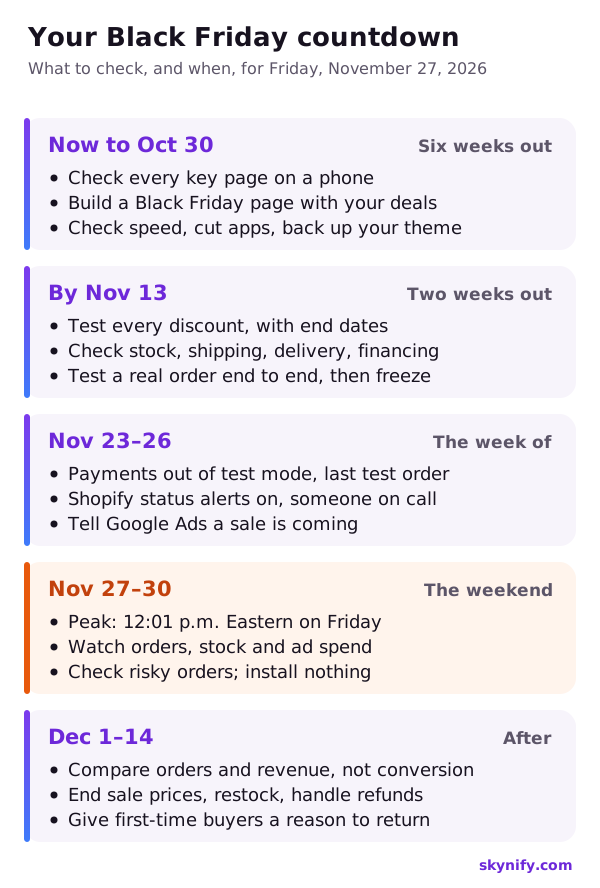
Dates for Black Friday on November 27, 2026. The full checklist is at the end of this post.
Starting in November?
With only a few weeks to go, these five checks matter most. Do them in this order, then freeze the store:
- Test every discount in a real cart on your phone.
- Place a real order and check it reaches Meta's Events Manager and Google Ads with the right value.
- Count your stock, fix the numbers in Shopify, and turn off Continue selling when out of stock for anything you can't restock quickly.
- Check Finance → Payouts for a reserve, and keep cash for the weekend's ad spend.
- Duplicate your live theme as a backup.
What changed on Shopify since last Black Friday
If your store was set up for last year's sale and then left alone, parts of it may not work the same way now. The usual checklists don't mention these:
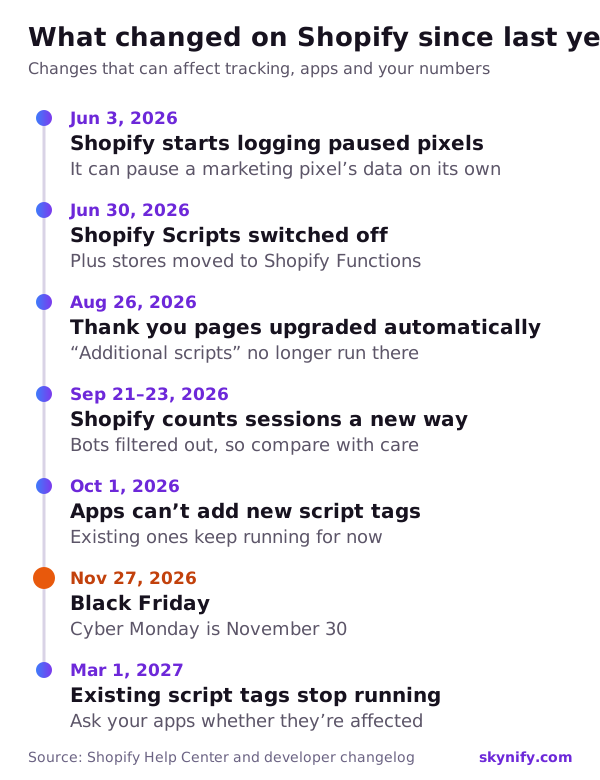
Sources: Shopify's Help Center and developer changelog, linked below.
What to do about each one before the sale:
- Your Thank you page was rebuilt. Shopify automatically upgraded every store's Thank you and Order status pages that hadn't been upgraded by August 26, 2026, and code pasted into "Additional scripts" doesn't run on the new pages (Shopify). If a tracking code, an affiliate tag or a post-purchase survey lived there, it has stopped. Tracking now belongs in app pixels or custom pixels.
- Shopify can pause a pixel on its own. App pixels now default to "Optimized" data access, which lets Shopify pause a marketing pixel's data when it decides the pixel is sharing too much. Those changes are logged from June 3, 2026 (Shopify). Check each pixel in Settings → Customer events.
- Your conversion rate changed meaning. On September 21–23, 2026, Shopify started filtering bots out of its session counts and counting some sessions it used to miss (Shopify). This year's conversion rate can't be compared directly with last year's, so compare orders and revenue instead.
- On Shopify Plus, Shopify Scripts were switched off on June 30, 2026 (Shopify). Discounts or shipping rules that ran on Scripts need Shopify Functions or an app.
1. Pages, speed and apps (now to October 30)
- Design for phones first. Look at every key page on your phone before you look at it on a laptop: the homepage, your bestsellers, your collections and the cart. If the design feels dated or fiddly on a small screen, fix that before you spend a dollar on Black Friday ads.
- Build a Black Friday landing page. One page with all your deals gives your ads and emails somewhere clear to send people.
- Give your key products more than a photo and a description. Add what makes your brand different, how the product is made and used, reviews and answers to common questions. The page then works like a funnel, and shoppers can make an informed decision instead of leaving to think about it. For Soul Comfort, redesigned landing pages were part of what took monthly revenue from $21K to $105K in four months.
Speed matters too. When Vodafone tested a faster version of a landing page against the old one, the version that showed its main content 31% sooner made 8% more sales (web.dev).
- Measure real shoppers, not a lab test. Shopify's web performance report (a summary on the Themes page, the full reports under Analytics → Reports) shows how fast your store is for real visitors. A store counts as good when, for at least three visits in four, the main content shows within 2.5 seconds (LCP), the page responds to a tap within 200 milliseconds (INP), and the layout doesn't jump around (CLS of 0.1 or less). The charts mark every app install and theme change, so you can see what slowed you down. The data can be up to 36 hours behind (Shopify).
- Cut the apps you don't use. Shopify names your theme, your apps and code you've added yourself, including tag managers, as the biggest factors in speed (Shopify). Some apps leave code behind in your theme after you uninstall them, so check your theme's app embeds too.
- Test your biggest pages on a phone with Google's PageSpeed Insights: the homepage, your best-selling product and your main collection. Large images and videos at the top of the page are the usual culprits.
- Back up your theme. In Online Store → Themes, duplicate your live theme from its ⋯ menu. If a late change goes wrong, you can publish the copy in a minute.
- One pop-up, not three. Each one adds code, and on a phone it covers the product people came to see.
2. Checkout and payments (by November 13)
- Place a real test order on your phone. Use a real card, then cancel and refund the order. If you use Shopify Payments' test mode instead, switch it off afterwards: customers can't place real orders while your payments are in test mode (Shopify).
- Keep express checkout visible. Shop Pay, Apple Pay, Google Pay and PayPal let shoppers skip the forms, and 32% of orders on Shopify over Black Friday–Cyber Monday 2025 went through Shop Pay alone (Shopify). The buttons (Shopify calls them accelerated checkout buttons) disappear or stop working when:
- your checkout makes customers sign in first, which hides Apple Pay and the other buttons in the cart (Shopify);
- the cart uses cart attributes, such as a terms checkbox, gift wrapping or a delivery date picker, or an app that changes the cart, converts currency or sends shoppers to another checkout (Shopify).
- Ask only for what you need. If "Company name" is required, Apple Pay and Google Pay shoppers have to type one in. Make optional fields optional.
- Make sure financing shows at checkout. Monthly payments make bigger orders easier to say yes to: Adobe expects US shoppers to spend $1.09 billion online with buy now, pay later on Cyber Monday alone, mostly on phones. Check that your pay-later option actually appears at checkout. For a furniture or mattress store, it can matter more than the size of the discount.
- Check risky orders before you ship. Shopify rates the fraud risk of every order on the order page. Look at the high-risk ones before fulfilling them, especially big-ticket orders.
- Plan for the money arriving after the orders. With Shopify Payments in the US and Canada, payments take three business days to settle, and Friday, Saturday and Sunday payments are paid out together on Wednesday (Shopify). So Black Friday weekend's sales start paying out on Wednesday, December 2, while the weekend's ads are charged as they run. Shopify can also hold back part of your payouts as a reserve when sales surge, or when you take preorders or custom orders: for example, 10% of each payment for 120 days (Shopify). Check Finance → Payouts now, and keep enough cash on hand for the weekend's ad spend.
3. Discounts, stock and shipping (by November 13)
- Test every discount yourself. Codes that don't work at checkout are a classic Black Friday problem. Build each discount now, with an end date, then try it in a real cart on your phone, exactly as a customer would.
- Know how your discounts stack. When two percentage order discounts combine in Shopify, both come off the original subtotal: a 20% automatic discount plus a 10% welcome code is 30% off, not 28% (Shopify). Check each discount's Combinations settings, so a welcome or abandoned cart code only stacks with your sale when you mean it to. Combinations only work in your online store and point of sale, not in checkouts on Facebook, Instagram or Google. To see what a discount does to your profit, try the discount break-even calculator.
- Make sure your stock numbers are right. Count what you actually have and fix the numbers in Shopify before the sale, so you never sell what you can't deliver. Then decide what happens when something sells out: "Continue selling when out of stock" only appears when Inventory tracked is on, and only stock at locations that fulfill online orders counts (Shopify). Turn it off for anything you can't restock quickly, so you don't sell what you can't ship.
- Promise delivery dates you can keep. Shopify can show estimated delivery dates at checkout once you set your fulfillment time in Settings → Shipping and delivery → Estimated delivery dates, with noon as the daily cutoff. They don't work with shipping rates from third-party apps, and they only show for products in stock (Shopify).
- Selling from Canada to the US? Settle duties at checkout. Since August 29, 2025, orders from Canada no longer enter the US duty-free (CBP). A customer asked to pay duty at the door can refuse the parcel, and you pay the shipping both ways. Shopify can collect duties and import taxes at checkout once your products have HS codes and a country of origin (Shopify), or you can build the duty into your US prices. More in selling internationally.
- Give every product a weight. If carrier-calculated rates fail at checkout, Shopify falls back to backup rates, and a product with no weight counts as weighing nothing, so the backup rate can come out far too low (Shopify). That matters most for heavy items like furniture and mattresses.
- Give preorders and made-to-order items a ship date, on the product page and in the order confirmation, so customers know what they're waiting for. In the US, if you give no date, the FTC expects you to ship within 30 days or offer a refund (FTC).
For furniture and mattress stores, financing and delivery deserve extra care: monthly payments make a big-ticket order easier to say yes to, and a sofa you sell but can't deliver by the promised date costs you more than the sale. There's more on selling big-ticket items on our furniture and home brands page.
4. Tracking: test one real purchase (by November 13)
During the sale, your ad platforms decide where to spend based on the purchases they can see. If purchases stop reaching them, they spend blind on the most expensive days of the year.
Shopify's own orders are the truth, and everything else should match them closely:
- Meta: use Shopify's own Facebook & Instagram sales channel, which handles the tracking for you. In Sales channels → Facebook & Instagram → Settings → Data sharing settings, choose Maximum. Enhanced and Maximum send purchases through Meta's Conversions API as well as the pixel, so fewer of them go missing (Shopify).
- Meta's matching: in Meta's Events Manager, open your pixel under Data sources, go to Settings and turn on automatic advanced matching, then switch on the customer details it may use, such as email, phone number and zip code (Meta). The more details Meta can match, the more purchases it can connect to the people who saw your ads. Meta doesn't offer this to businesses it classes as health, finance and similar.
- Google: connect through the Google & YouTube app, turn on enhanced conversions, and make sure the app's purchase conversion is the one Google Ads optimizes for, with no older tags counting the same sale twice.
- Every pixel: in Settings → Customer events, check that each one is connected, and look at its log for pauses. We set the Facebook & Instagram pixel's data access to Always on, so Shopify can't pause it in the middle of the sale.
Then place one real order and follow it through:
- Note the order number and total in Shopify.
- In Meta's Events Manager, check that the purchase arrived with the right value.
- In Google Ads, check that the conversion was recorded. It can take a few hours.
- In Google Analytics, check that the purchase shows in the realtime report.
To check the pixel on your own store, Meta's free Chrome extension, Meta Ads Data Advisor (it used to be called Meta Pixel Helper), shows whether the pixel loads on each page and which events fire. Events Manager's Test events tab shows each event as it arrives. If anything is missing or the value is wrong, fix it now, while there's still time to test again.
Once everything checks out, freeze the store: no new apps, no theme edits and no experiments until after Cyber Monday.
If tracking breaks during the sale anyway, Google Ads lets you leave the affected days out of Smart Bidding with a data exclusion (Tools → Adjustments → Exclusions), so it doesn't learn from bad data (Google). Once the numbers are right, here's how to tell whether your ads are actually making money.
5. The week of (November 23–26)
- Make sure payments are out of test mode, and place one last real order.
- Check every pixel's log again in Settings → Customer events.
- Turn on alerts at Shopify Status, so you hear about a problem on Shopify's side before your customers tell you.
- Agree who's on call over the weekend, and who to contact about your theme, each important app and your payments.
- If you run Google Ads with Smart Bidding, add a seasonality adjustment for the sale. Google made them for short events of one to seven days when you expect conversion rates to jump (Google).
- Keep the freeze: no new apps, no theme edits and no experiments until the sale is over.
6. The weekend (November 27–30)
Your job this weekend is to watch, not to build. And every store's weekend has its own shape. Here are two of our clients' stores on the same day, Black Friday 2025:
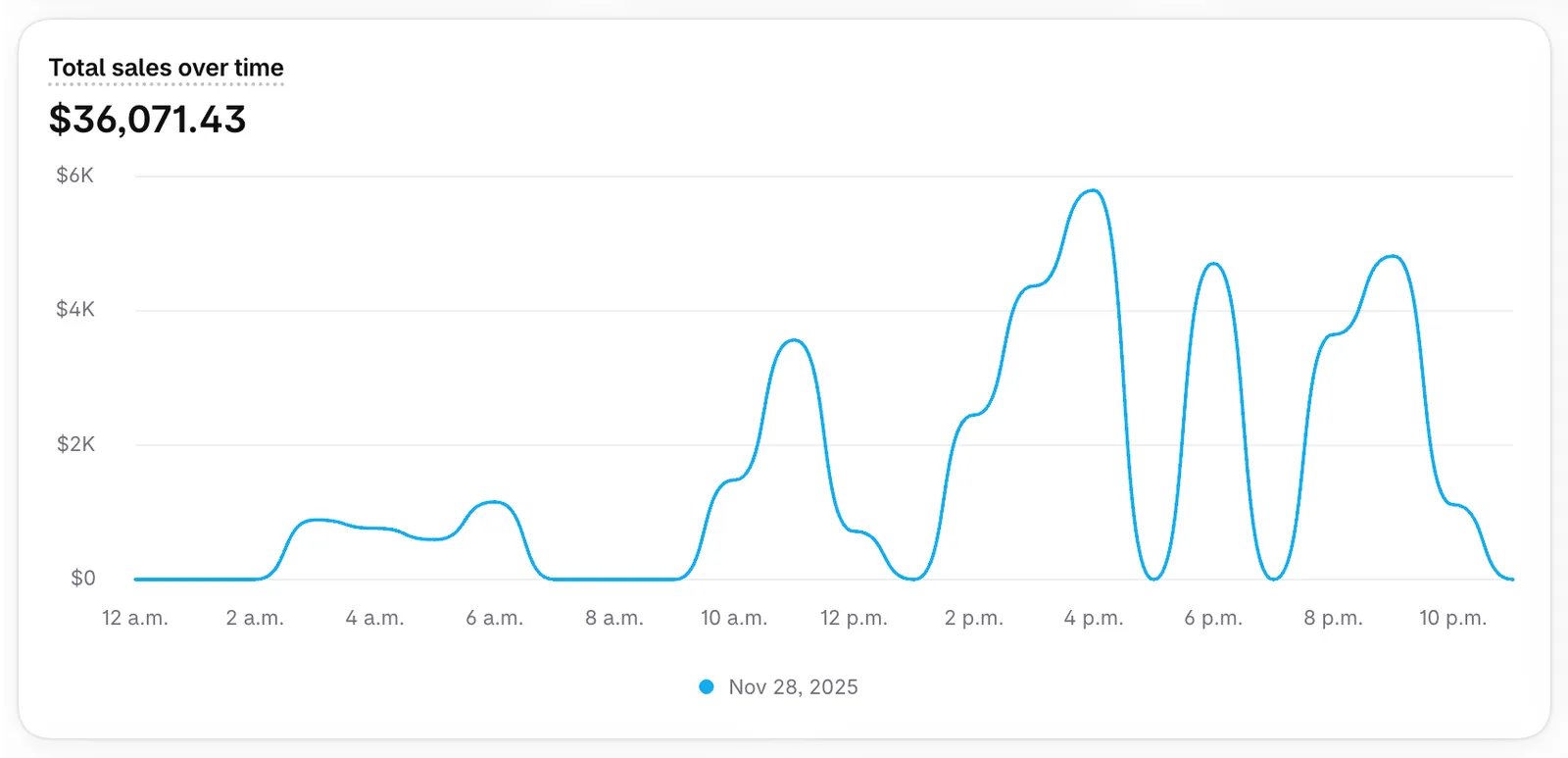
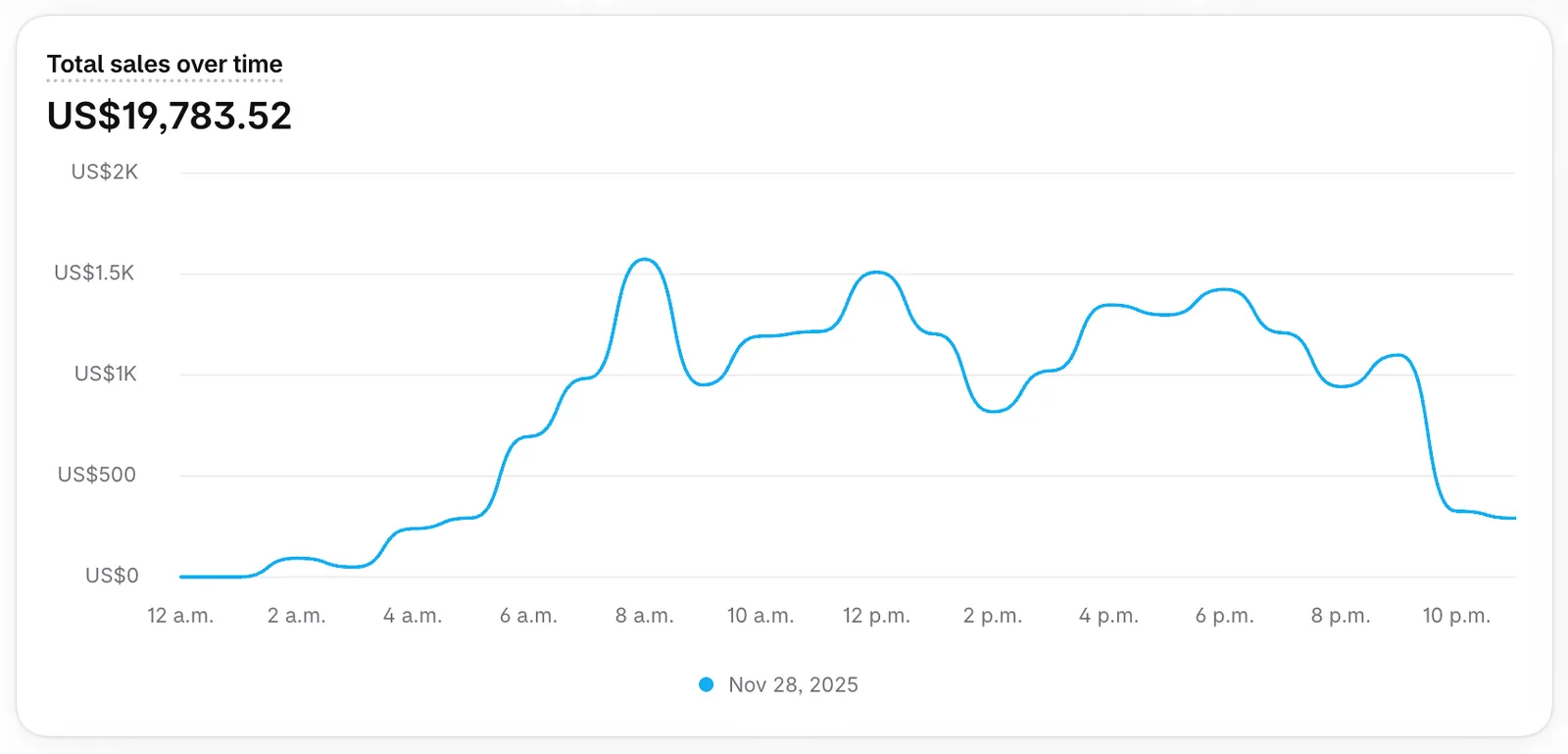
Total sales by hour on Black Friday 2025 (November 28) at two Skynify client stores, in each store's own time zone.
One store made most of its money in bursts between 2 p.m. and 10 p.m. The other was busy from early morning and steady all day. Before the sale, open last year's Black Friday in Shopify's sales report, hour by hour, and plan your ad budget, your emails and who's on call around your own busy hours.
- Be ready early. Across all Shopify stores, the busiest minute has come at 12:01 p.m. Eastern on Black Friday three years running (Shopify's reports for 2023, 2024 and 2025), but as the charts show, your own store may peak at a different time.
- Watch the numbers that matter: orders per hour, products selling out, ad spend against your budget, and any jump in abandoned checkouts.
- Don't panic over an outside monitoring tool. At big traffic peaks, Shopify puts real shoppers ahead of bots, so third-party tools can show your store as slow or down while customers are buying normally (Shopify). Check as a shopper, on your phone.
- Check high-risk orders before you ship them.
- Install nothing. If something breaks, go back to your backup theme instead of fixing it live.
- Keep stock and budget for Monday. Across all US online stores, Adobe expects Cyber Monday to be the biggest day of the season at $15.1 billion, ahead of Black Friday at $12.9 billion. Smaller brands often see the opposite: in Omnisend's data from more than 5,000 US brands, 58% had more orders on Black Friday than on Cyber Monday in 2025 (Omnisend). Plan for both days and the weekend between.
7. After Cyber Monday (December 1–14)
- Compare orders, revenue and new customers with last year, not conversion rate, since Shopify now counts sessions differently.
- Don't trust A/B tests that ran across the sale. Shoppers behave differently that weekend. Once normal traffic is back, the A/B test calculator tells you whether a result is real.
- End sale prices and switch off any discount still running. Restock, and handle returns and refunds quickly.
- Turn first-time buyers into repeat customers. Post-purchase and win-back emails do that work: see the 5 email flows every Shopify store should have running.
What we see go wrong
These are the problems we run into most often:
- A store that isn't built for phones. Most shoppers buy on their phones, but plenty of stores still have a design that's dated or made for desktop.
- Product pages with only a photo and a description. Shoppers need more to decide: the brand, the details, reviews and answers to their questions.
- Discount codes that don't work at checkout, because nobody tested them.
- No financing option for bigger orders.
- Tracking that's only half set up, so the ads spend without seeing the sales.
- Stock numbers that are wrong, so the store sells what it can't deliver.
The checklist
Copy this into your calendar.
Now to October 30
- Check every key page on your phone, and fix anything dated or fiddly
- Build a Black Friday landing page with all your deals
- Give your bestsellers' pages more than a photo and a description
- Check speed in Shopify's web performance report
- Test your top pages in PageSpeed Insights on a phone
- Remove unused apps and the code they left behind
- Duplicate your live theme as a backup
- Find anything that used "Additional scripts" on the Thank you page, and replace it
By November 13
- Build every discount with an end date, and test each one in a cart on your phone
- Check which discounts combine
- Count your stock, fix the numbers in Shopify, and set out-of-stock rules
- Set shipping rates, delivery dates and product weights
- Check that express checkout buttons and financing show at checkout
- Set Facebook & Instagram data sharing to Maximum, and its pixel to Always on in Settings → Customer events
- Turn on automatic advanced matching in Meta's Events Manager
- Place a real order on your phone and follow it through Meta, Google Ads and Analytics
- Check Finance → Payouts for a reserve, and plan cash for ad spend
- Look at last year's Black Friday sales hour by hour, and plan around your busiest hours
- Freeze theme and app changes
November 23–26
- Payments out of test mode, and one last real order
- Pixel logs checked again
- Shopify Status alerts on, and an on-call list agreed
- Google Ads seasonality adjustment set
November 27–30
- Ready before your own busiest hours, and by 12:01 p.m. Eastern on Friday
- Orders, stock and ad spend watched through the weekend
- High-risk orders checked before shipping
December 1–14
- Orders and revenue compared with last year, not conversion rate
- Sale prices and leftover discounts ended
- Stock refilled, returns handled
- Post-purchase emails reaching your new customers
Questions and answers
About six weeks out, so mid-October: pages and speed first, then discounts, stock, shipping and tracking by two weeks before the sale, and a freeze on changes after that. Black Friday is November 27 this year. Starting later? Test your discounts, one real order through your tracking, and your stock numbers first, then freeze.
It's rarely Shopify itself, since Shopify runs the servers and plans for the traffic. What breaks is usually on your side: an app, a late theme change or a discount that doesn't work. At big peaks, outside monitoring tools can wrongly show a store as slow or down, so check as a shopper, on your phone.
Shopify only combines discounts when the setting on each discount allows it, so check the Combinations section of both. Customers can also use at most five product or order codes and one shipping code per order, and combinations don't work in checkouts on Facebook, Instagram or Google.
Count your stock and fix the numbers in Shopify before the sale, keep Inventory tracked on, and turn off Continue selling when out of stock for anything you can't restock quickly. Only stock at locations that fulfill online orders counts toward what shoppers can buy.
Place a real order, then make sure the purchase shows up in Meta's Events Manager with the right value. Meta's free Chrome extension, Meta Ads Data Advisor (formerly Meta Pixel Helper), shows whether the pixel fires on each page, and the Test events tab shows events as they arrive.
Shopify changed how it counts sessions on September 21 to 23, 2026: it now filters out known bots and counts some sessions it used to miss. Your conversion rate can move even when your orders don't, so compare orders and revenue with last year instead.

Founder of Skynify. Nine years in e-commerce, with 100+ Shopify brands as clients, from first-time founders to Tuff Crowd.